Google Play screenshot sizes & requirements.
Phone and tablet dimensions, screenshot counts, and the separate feature graphic for your Google Play listing.
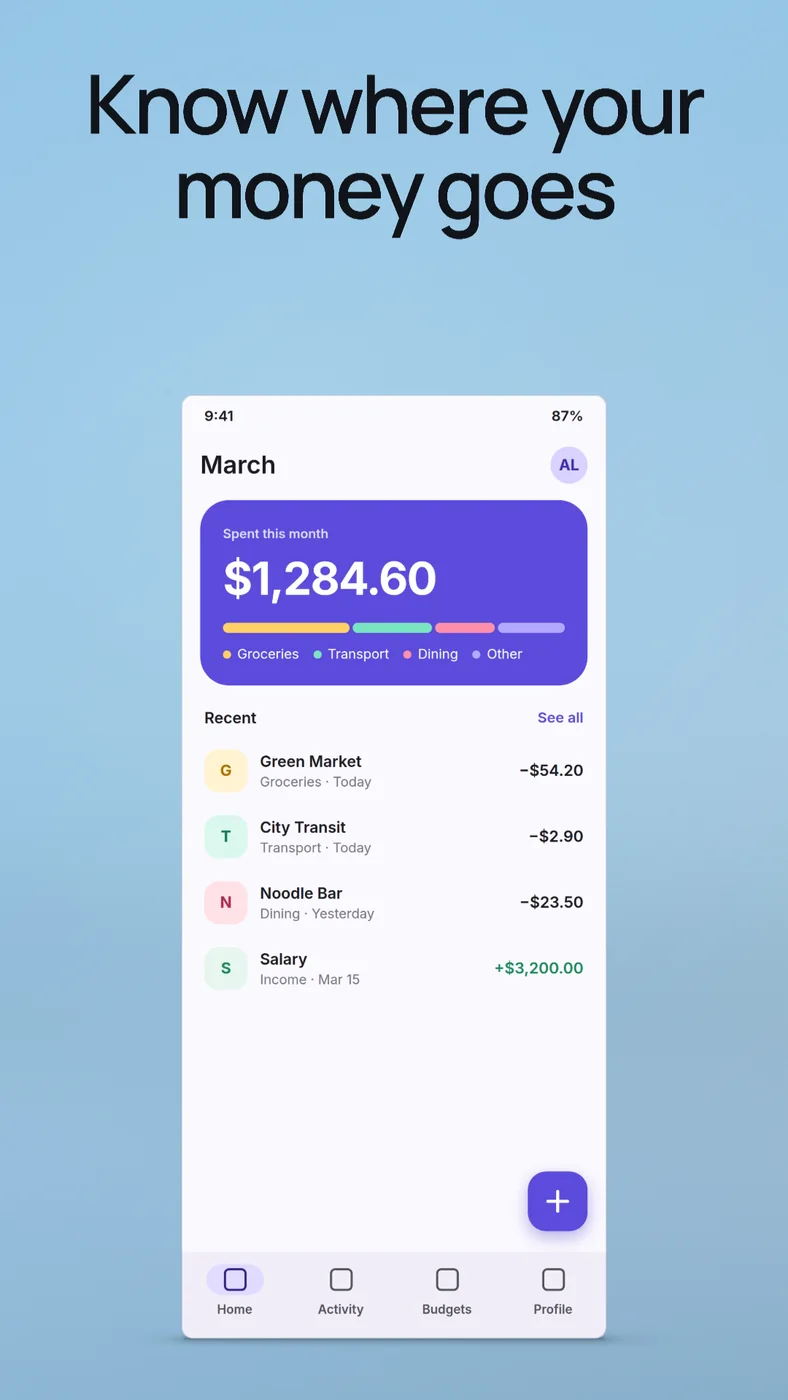
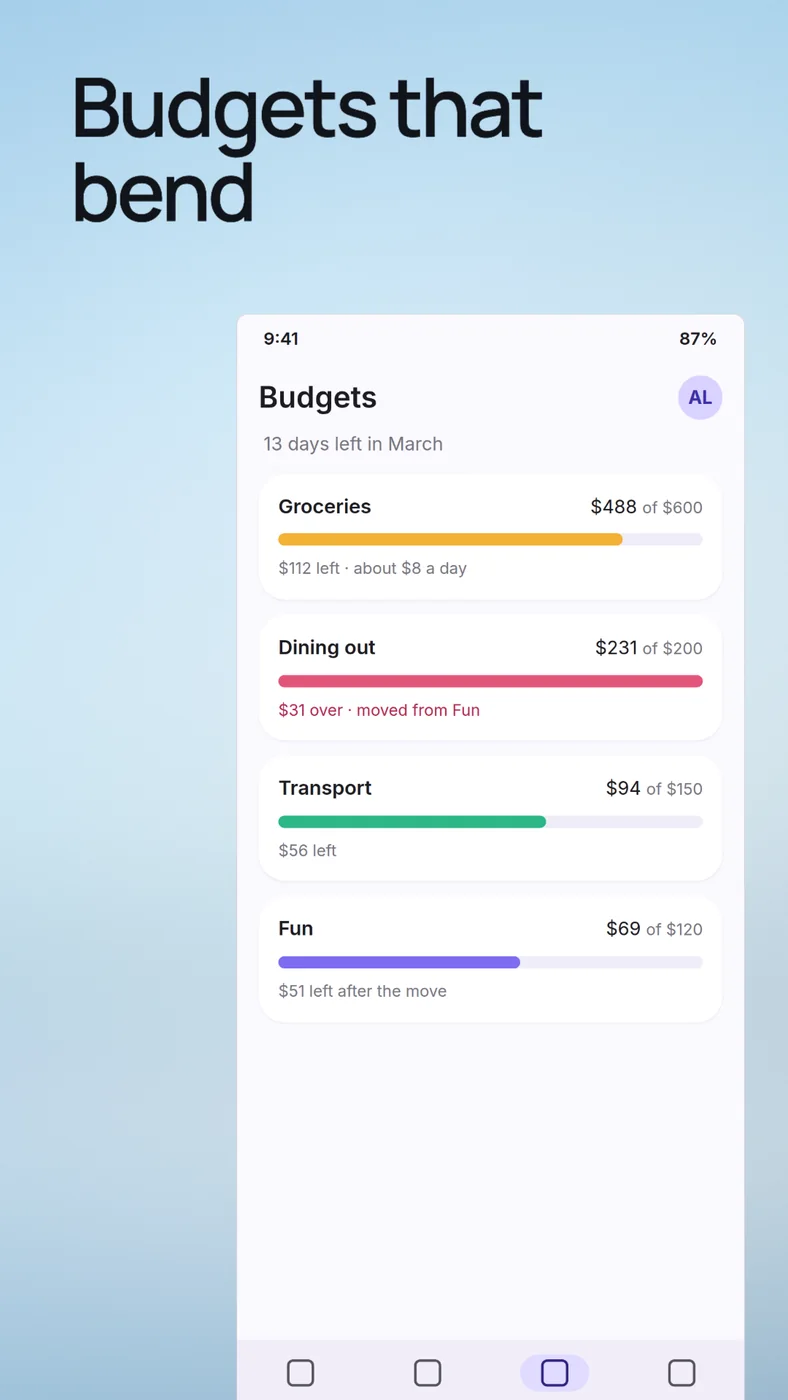
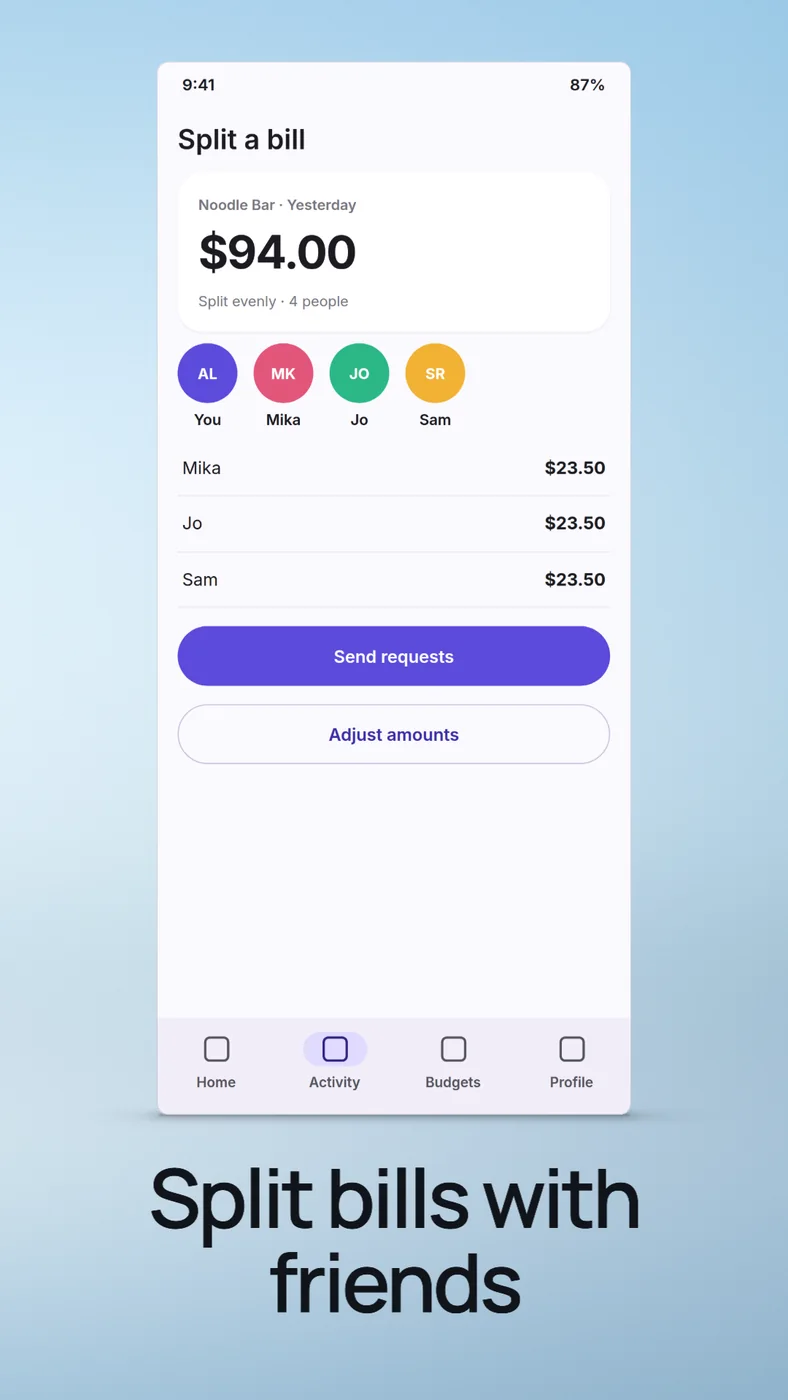
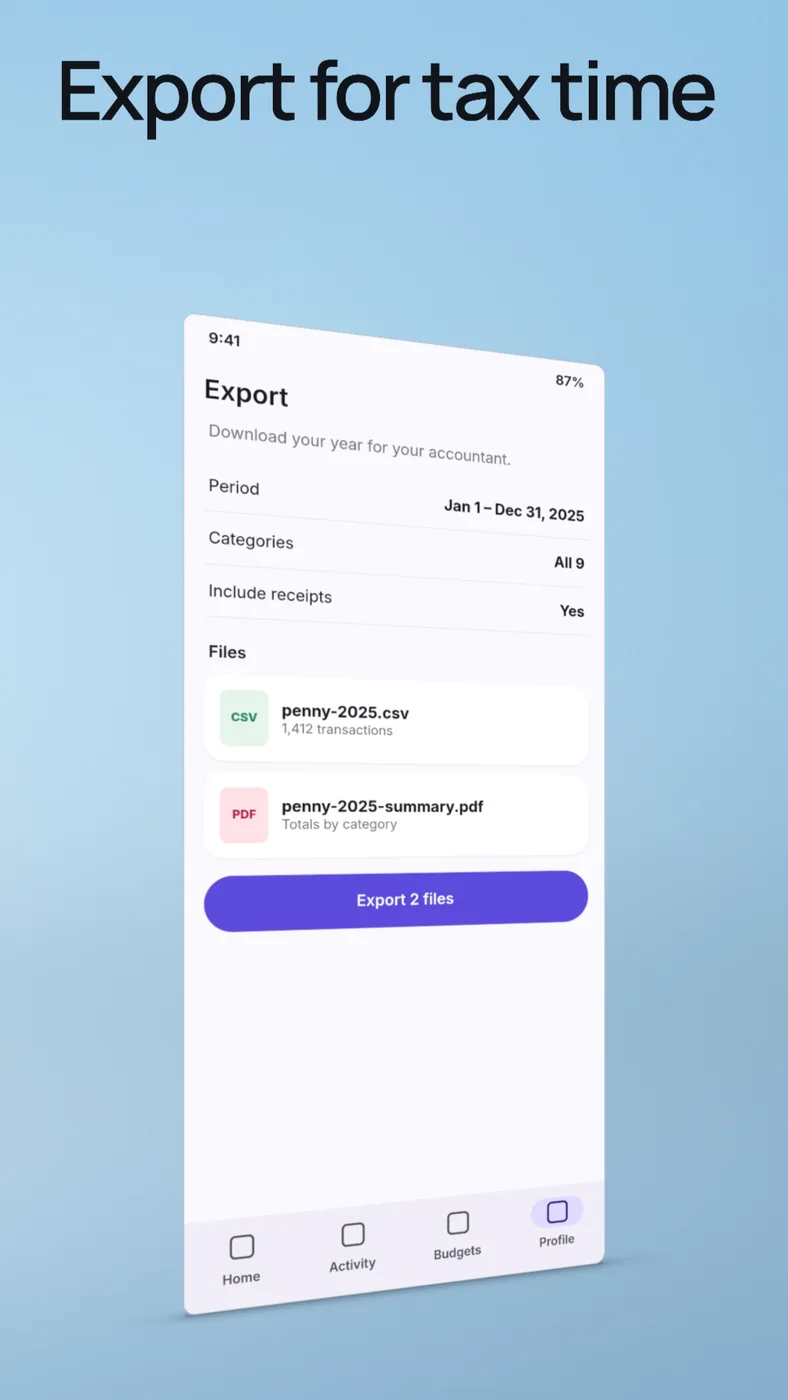
Choose a canvas for your app.
For a portrait phone set, 1080 × 1920 pixels is a practical starting point and DeioLab’s current preset. Landscape reverses those dimensions.
Google distinguishes baseline uploads from eligibility for screenshot-based promotional formats. Meeting a pixel size alone does not establish eligibility.
Screenshot sizes and file rules.
| Baseline upload rule | Requirement |
|---|---|
| Each edge | 320–3840 px |
| Shape | Long edge ≤ 2 × short edge |
| Files | JPEG or 24-bit PNG; no alpha |
| Count | At least 2 across device types; up to 8 per type |
Source: Google’s preview-asset specifications. Device-specific rules can differ.
For screenshot-based recommendation formats: apps need at least four screenshots; games, three. Use 9:16 portrait or 16:9 landscape with a short edge of at least 1080 px.
| Example canvas | Width × height |
|---|---|
| Portrait · 9:16DeioLab phone set preset | 1080 × 1920 |
| Landscape · 16:9Reference only | 1920 × 1080 |
| Higher-resolution portraitCalculated 2× example; reference only | 2160 × 3840 |
These examples are choices within the rules, not one mandatory phone resolution. Doubling a finished image adds pixels, not missing UI detail.
Use tablet captures for large screens.
For tablets and Chromebooks, Google specifies at least four screenshots, dimensions of 1080–7680 px, and 9:16 portrait or 16:9 landscape. Exclude added promotional text.
A tablet screenshot should show your tablet layout. Stretching a phone composition cannot reveal a navigation rail, second pane, or wider content that was never captured.
Android’s adaptive app guidance explains why layouts vary across tablets and foldables. Capture the actual experience you want a new user to understand.
This guide covers phones and large screens. Wear OS, TV, Automotive, and XR have separate rules in Google’s reference.
The feature graphic is a separate image.
A feature graphic is required: 1024 × 500 pixels, JPEG or 24-bit PNG without alpha. It does not replace your screenshots.
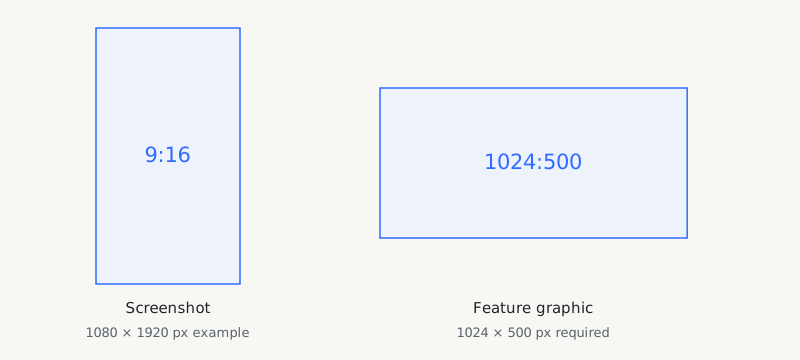
Plan this as a separate composition. A crop of a tall phone slide often loses either the screenshot or its headline. Start with the wide canvas instead.
Google’s listing best practices favor concise, truthful visuals, consistent styling, and important content near the center. Avoid ranking or promotional claims.
What DeioLab exports today.
The Google Play phone set exports 1080 × 1920 portrait slides as numbered RGB PNGs in one ZIP. It supports 2–8 slides and starts with a clean frame.
Tablet sets, landscape Play sets, and a dedicated feature-graphic export are not built into this workflow. The other sizes above are references, not additional set presets.
Create a Google Play phone setBuild and check your sequence.
Capture the Android experience.
Use screens from your current Android build. Capture each device layout separately and keep the source files sharp enough for the chosen canvas.
Make the UI easy to read.
Google recommends minimal taglines and screenshots that honestly show the app. Our examples demonstrate composition, not approval or promotional eligibility.
Review the row.
Import your screens into the phone set, choose a shared look, and check the order. Open Review set to inspect crops and read the sequence together.
Inspect the downloaded files.
Extract the ZIP, confirm dimensions, and check each PNG at its actual size. Upload the images to the matching Play Console slots and keep the editable project.
For another release platform, use the App Store screenshot sizes guide. Its device groups and export presets are separate from Google Play’s.
Sources & review date.
Checked on . Submission rules come from Google; export capabilities were checked against DeioLab’s current implementation.
- Google Play: Preview asset specifications
- Google Play: Store listing best practices
- Android: Adaptive app quality
Follow the current fields and validation shown for your app in Play Console. A correctly sized image does not guarantee acceptance or promotion.
Ready to compose your phone screenshots?
Create a Google Play set