App Store screenshot sizes & requirements.
The required iPhone and iPad dimensions, file rules, and export presets for your next App Store submission.
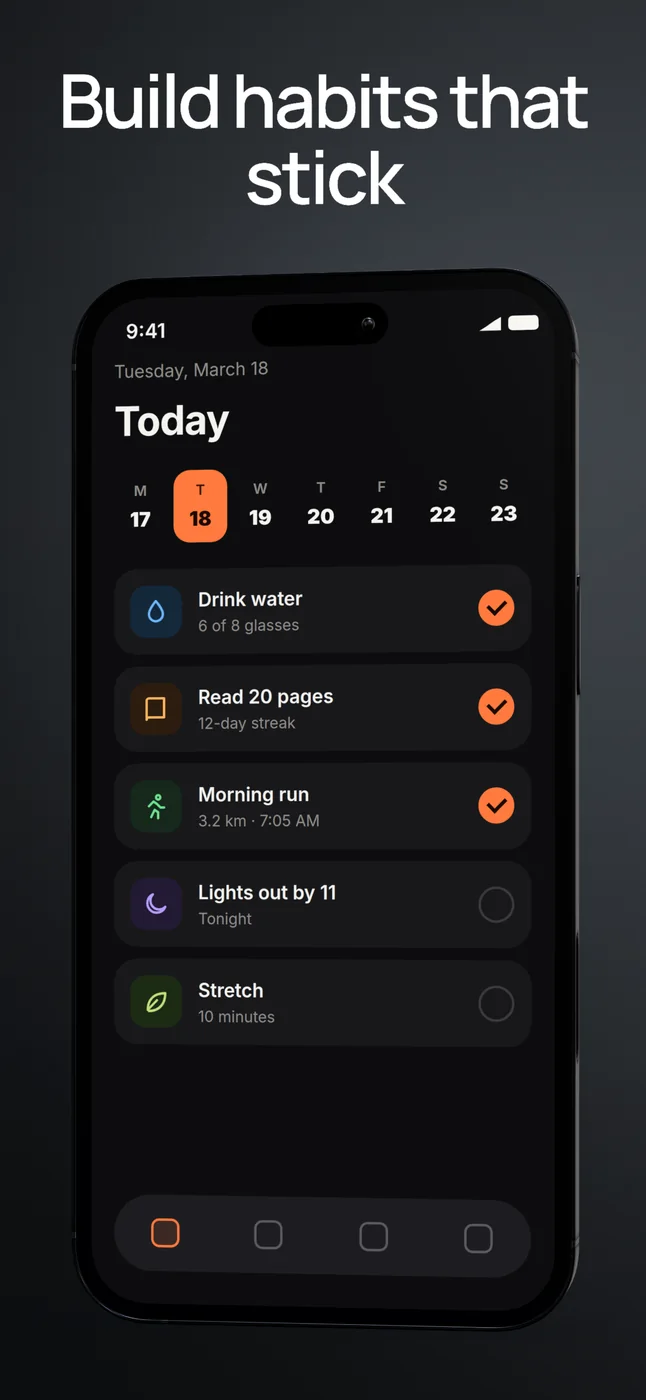
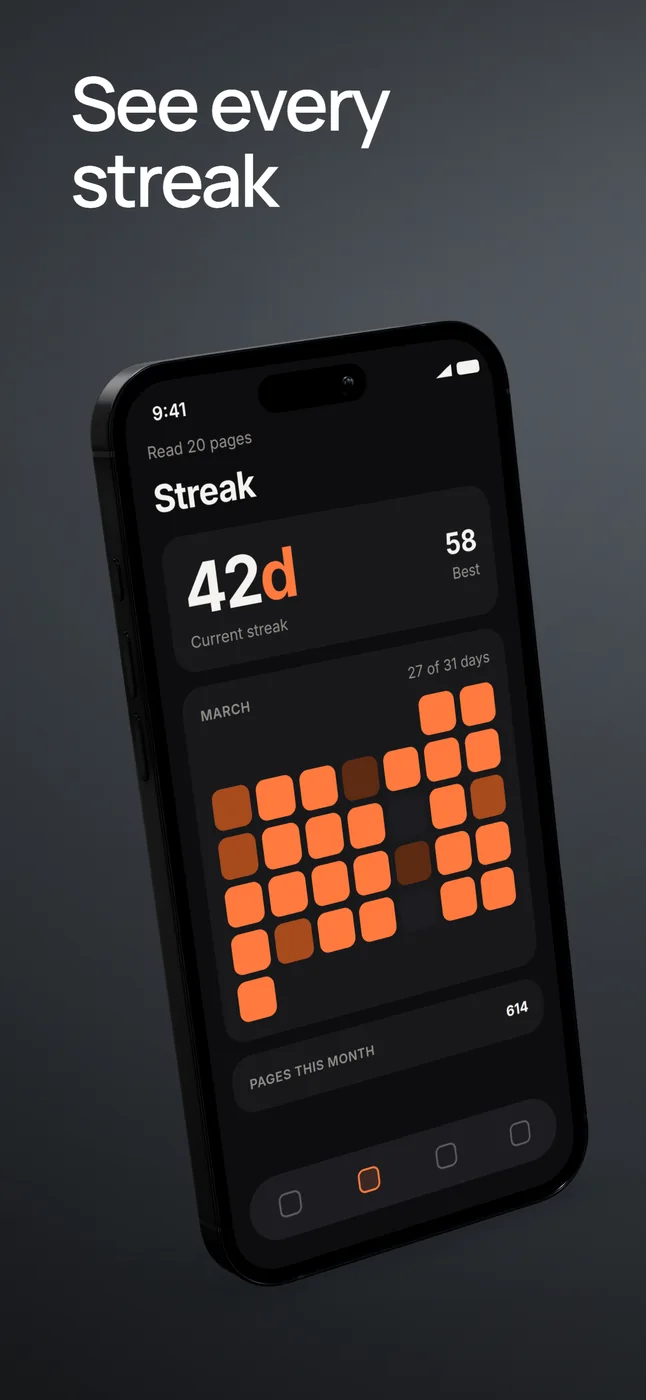
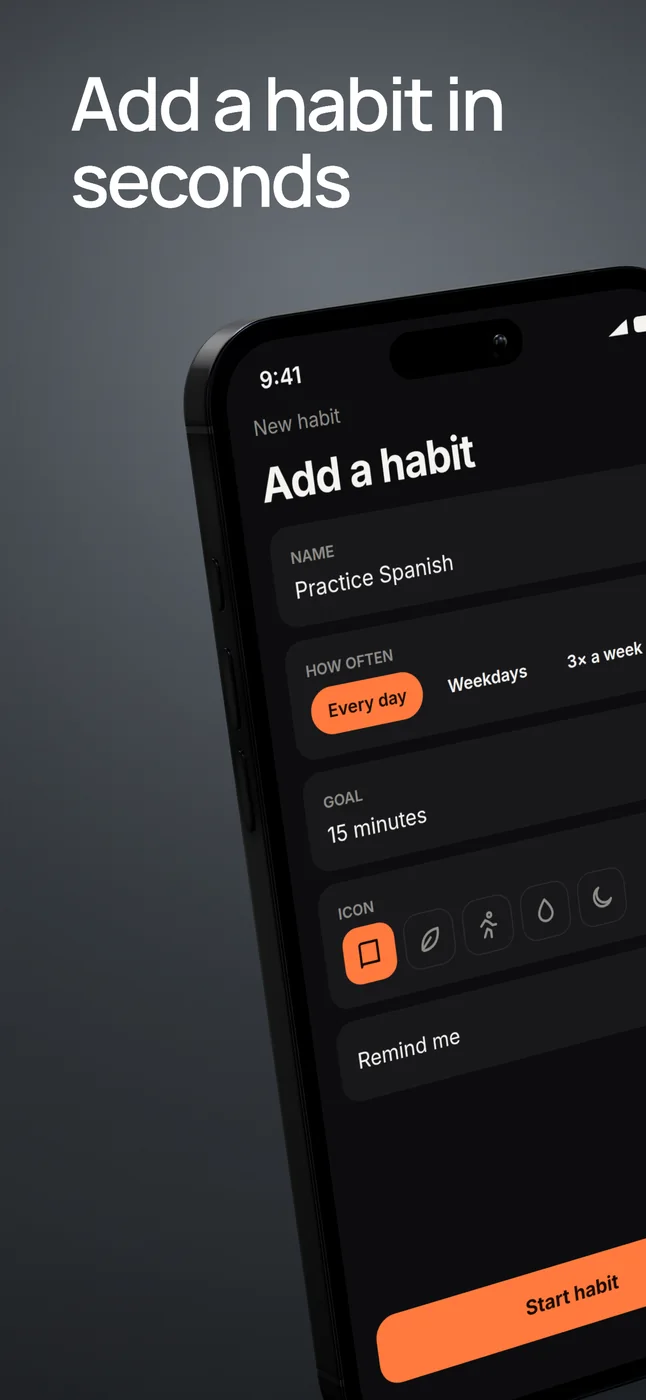
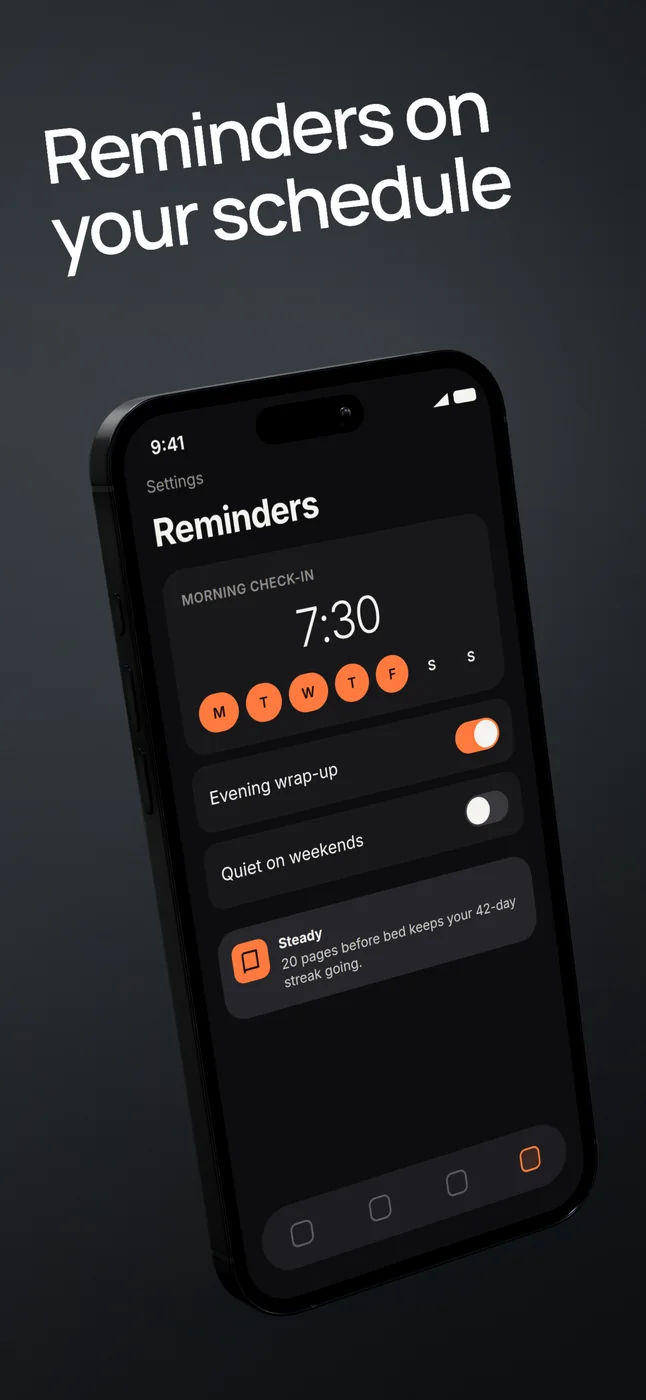
Which screenshot size do you need?
For iPhone, Apple lists the medium Dynamic Island group as required: 1179 × 2556 or 1206 × 2622 pixels in portrait.
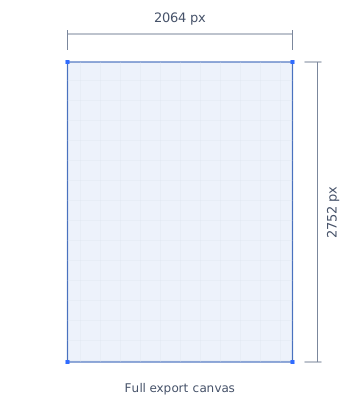
If your app supports iPad, include the 13-inch group: 2064 × 2752 or 2048 × 2732 pixels.
You do not need a separate upload for every row below. When the app’s UI is consistent, App Store Connect can scale screenshots from the highest required resolution to smaller groups. The fallback source depends on the group; Apple’s specifications list those rules.
Choose the group first, then one of its accepted dimensions. All sizes below measure the whole exported image, including its background and text.
iPhone screenshot sizes.
Width × height, in pixels. Sizes within each row are alternatives. Switch the view to see portrait or landscape dimensions in both tables.
| Display group | Portrait · pixels |
|---|---|
| Dynamic Island · mediumRequired iPhone group | 1179 × 25561206 × 2622 |
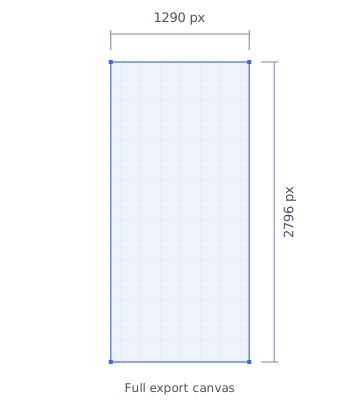
| Dynamic Island · largeAccepted large-display group | 1260 × 27361290 × 2796DeioLab preset1320 × 2868 |
| Face ID · largeRequired if large Dynamic Island screenshots are absent | 1284 × 27781242 × 2688 |
| Face ID · mediumAdditional device group | 1170 × 25321125 × 24361080 × 2340 |
| Home button · largeAdditional device group | 1242 × 2208 |
| Home button · mediumAdditional device group | 750 × 1334 |
This table covers standard iPhone display groups. Older status-bar variants and separate device-specific displays are in Apple’s full reference.
iPad screenshot sizes.
The 13-inch group is required for iPad apps. Other groups allow device-specific artwork.
| Display group | Portrait · pixels |
|---|---|
| 13-inchRequired for apps supporting iPad | 2064 × 2752DeioLab preset2048 × 2732 |
| 12.9-inchAdditional device group | 2048 × 2732 |
| 11-inchAdditional device group | 1488 × 22661668 × 24201668 × 23881640 × 2360 |
| 10.5-inchAdditional device group | 1668 × 2224 |
For older iPad sizes and status-bar variants, consult Apple’s full table.
File requirements.
- 1–10 screenshots per device size.
- JPEG or PNG, with no alpha channel or transparency.
- Portrait or landscape: use the matching width and height from the tables.
Export the complete composition with an opaque background. A transparent device cutout is a separate asset for uses such as a website.
What DeioLab exports today.
The coordinated set workflow has two App Store presets. Both export numbered RGB PNGs without transparency, in slide order, inside one ZIP.
Both set presets are portrait. The table’s landscape sizes are reference dimensions; the set exporter does not offer them.
Prepare the set, then review it.
Choose a device group before arranging your screenshots. That gives you a real canvas to judge the headline, crop, and reading order against.
Bring the right source screens.
Capture the app at a useful resolution. Use an iPad layout for an iPad composition; resizing an image cannot create missing detail or change the app’s interface.
Build one visual sequence.
Import your screens into a set. Keep the background and type consistent, then give each slide one job. Replace a screenshot without rebuilding the composition.
Check the whole row.
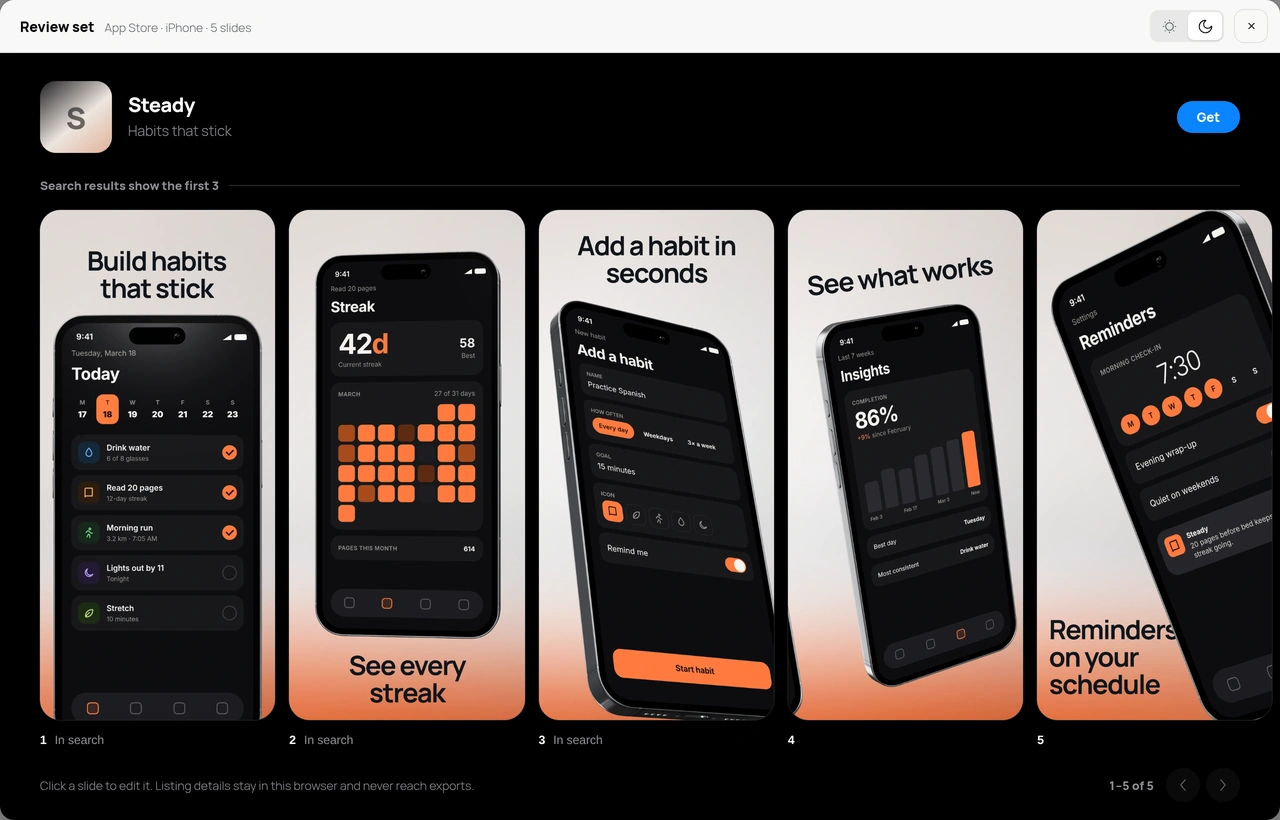
Open Review set. Read the headlines in order, check every crop, and look at the images together.
Export and inspect the files.
Download the ZIP, extract it, and check the actual pixel dimensions. Match the numbered PNGs to the right App Store Connect slots. Keep the editable project for the next release.
Sources & review date.
Requirements checked on . Apple’s documentation controls the submission rules; DeioLab preset sizes were checked against the current set exporter.
Follow the upload slots shown for your app in App Store Connect. Meeting the image dimensions does not guarantee approval; Apple’s product-page guidance also covers what your screenshots should show.
Publishing on Android too? See the Google Play screenshot sizes guide.
Ready to put the set together?
App Store screenshot generator